From the main menu bar, select Settings > Users:
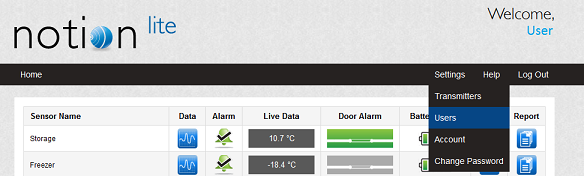
| Note: | You will only see all the options under the Settings menu if you are an Administrator User. |
![hmfile_hash_5d0b3328[1]](hmfile_hash_5d0b3328[1].png)
From the User Management Window you can:

You can create new users and set their Name, Role, Email Address and Phone Number.
To Create a new User:
1.In the User Management window, click Add User:
•The Add User window is displayed:
|
2.Enter the user's name into the User name box. Note: A user name must consist only of letters or numbers (no spaces). |
3.Enter the user's role into the User Roles drop down list: •Users can view all data on the system, and can receive and acknowledge messages about Transmitter-Sensor alarms. •Administrators can do all that a User can do, and can also add and configure Transmitter-Sensors, set alarm thresholds and create and edit users. •System Administrators can do all that a User and Administrator can do, and can also set up and modify company accounting and payment details. |
4.Enter the user's email address into the E-Mail box (used for temperature alarm notification). |
5.Enter the user's phone into the Phone Number (SMS) box (used for temperature alarm notification via SMS). |
6.Click on Create: |
![hmfile_hash_35ed55c7[1]](hmfile_hash_35ed55c7[1].png)
![hmfile_hash_a177d1b1[1]](hmfile_hash_a177d1b1[1].png)

You can edit any of a User's attributes, set when adding the User to Notion Lite, except the User Name. You can also: •Reset a User's Password. •Enable or Disable a User. To edit a User's attributes: 1.In the User Management window, click on the relevant Edit entry for the User to be edited ie:
•The Edit User window is displayed:
2.Change User Role (from the drop down list), E-Mail or Phone Number (SMS) as required. •To Disable a User, clear the Enabled tick box. •To Enable a User, check the Enabled tick box. •To reset the User's Password, select the Reset Password tick box. When the change is applied, Notion Lite will automatically generate a new password and email it to the user. 3.Click on Save Changes:
|
![hmfile_hash_2e5eb4ce[1]](hmfile_hash_2e5eb4ce[1].png)
![hmfile_hash_84832597[1]](hmfile_hash_84832597[1].png)
![hmfile_hash_99db4f99[1]](hmfile_hash_99db4f99[1].png)
Number of Users Allowed
•You can add any number of Users to Notion Lite,
•However, only five Users can be Enabled simultaneously, irrespective of Licence (including 10 Channel or 30 Channel Licences), Voucher or Subscription Type and one of these must be a System Administrator.
•If you reach the maximum number of enabled Users (5), you can Disable an obsolete User and add a new one.
See Also: